
Joining a classroom Blooket game does not require a student account. The teacher hosts the session and shares a Game ID, QR code or join link. Information in this guide was checked against Blooket’s official help pages on November 22, 2026.
To join, open play.blooket.com and enter the Game ID supplied by the host, scan the host’s QR code or follow the shared join link. Enter a nickname if prompted, choose a Blook and wait for the teacher to start. If random names are enabled, the game assigns a nickname instead.
A teacher account and a student login serve different purposes. The teacher needs an account to host; students can participate without signing in. Students who want to use their account’s Blook and earn account points should log in before joining.
Blooket’s official joining instructions identify play.blooket.com as the live-game entry page. Use the ID displayed by the host: the company’s joining and hosting guides give different code lengths, so this guide does not prescribe a fixed digit count.
To host, sign in and open a question set from My Sets or Discover, or create a set. Select Host, choose an available game mode and adjust its time limit or goal and other settings. Select Host Now, share the Game ID, QR code or join link, then start when the players are ready. Blooket’s hosting guide explains the sequence and settings such as late joining and random names.

The essential features are free. Blooket’s free-plan guidance says users can create unlimited question sets and host up to 60 players. Plus supports up to 300, with exceptions for Racing and team modes. Check the selected mode’s limits before planning a large session; this is not a universal 300-player allowance.
For teachers weighing another classroom platform, the Eastern Herald’s Blooket vs Gimkit comparison is a separate guide. Joining a teacher’s existing Blooket session does not require choosing a paid upgrade first.
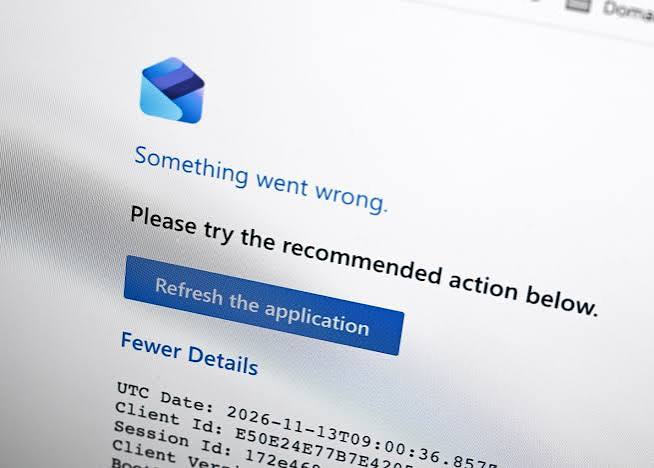
A failed connection does not prove that a code has expired. Blooket’s troubleshooting guidance identifies interfering browser extensions and blocked backend connections as possible causes. On a managed school device, ask the teacher or IT administrator to check access rather than changing school security settings yourself. Usernames are case-sensitive when logging in.
The related Blooket vs Kahoot guide covers another platform comparison. For the immediate classroom task, use the host’s current invitation and settings; the teacher starts the live game after students join.